Lesson 1 of 7 · 2 min
Real headings
What it is
A heading is a short label at the top of a section that tells you what that section is about, like a chapter title in a book. In the practice doc, “Welcome to the Team,” “How to Clock In,” and “Breaks” are all headings.
Headings have levels, like an outline. Title is the name of the whole document. Heading 1 is a main section. Heading 2 is a smaller section inside a main section.
Why it matters
There’s a difference between text that looks like a heading and text that is a heading. In the practice doc, the section names are regular text made big, bold, and green. Your eyes see a heading. A screen reader, software that reads the page out loud, sees an ordinary sentence.
Sighted readers skim by glancing at headings. Screen reader users skim by jumping from heading to heading, but only when the headings are real.
How to fix it
Step 1. Open the outline: View › Show outline. It’s empty, because Google Docs doesn’t see any headings yet.
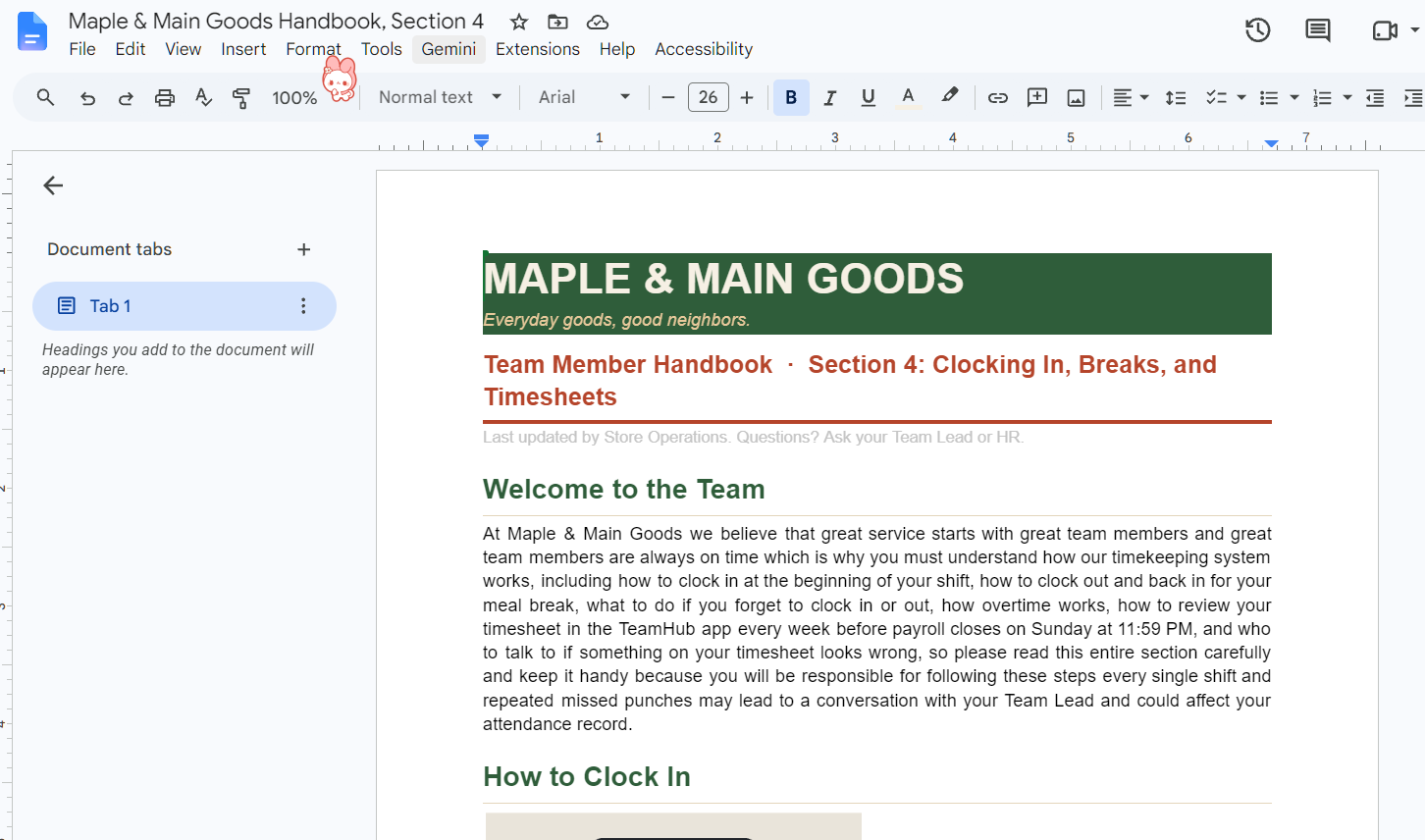
Before: the style menu says “Normal text,” and the outline is empty. Step 2. Click into a section name, like “Missed Punches.” Open the style menu in the toolbar, where it says “Normal text.” Point to Heading 1, then choose Apply ‘Heading 1.’ Repeat for each section name, and set “Maple & Main Goods” to Title.
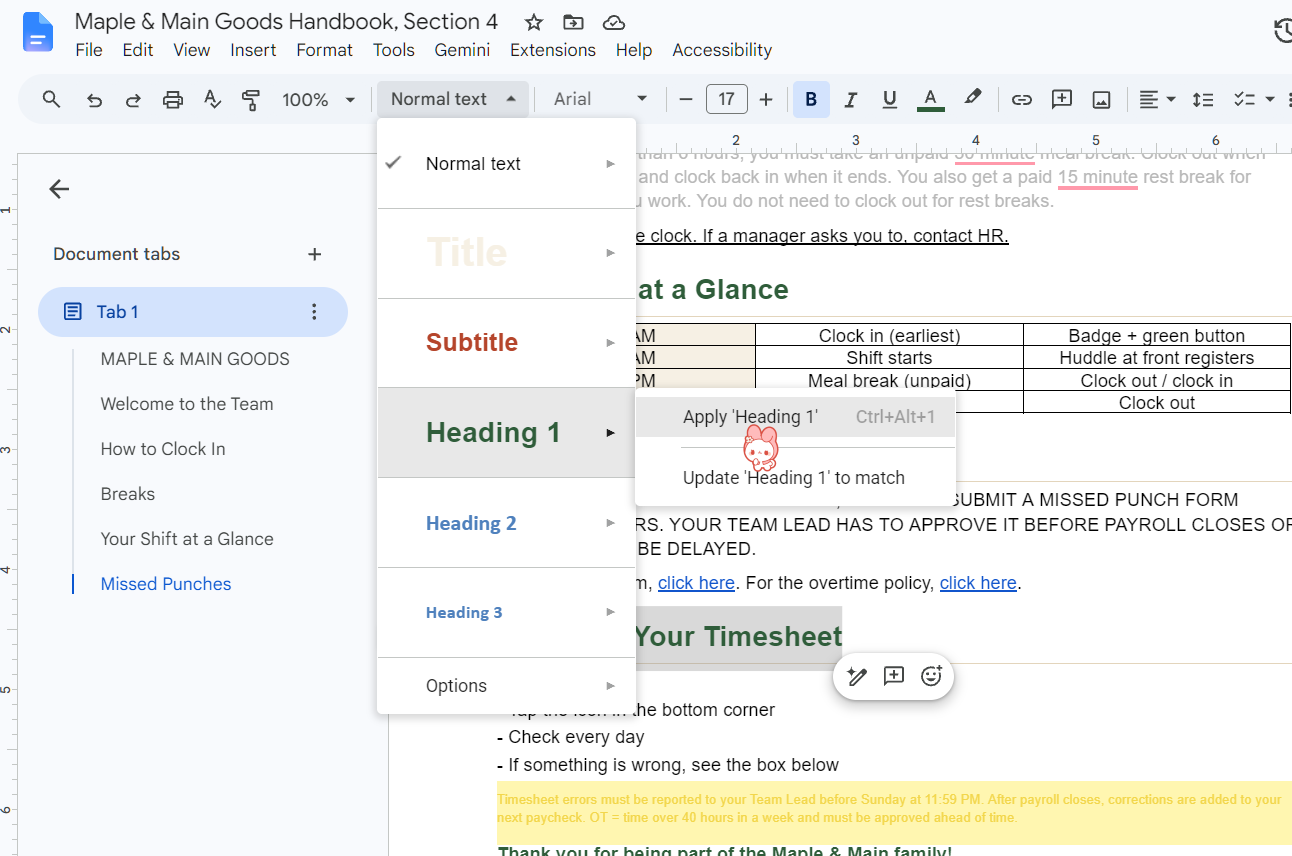
Apply Heading 1. Watch the outline fill in as you go.
Tip · Keep your brand look
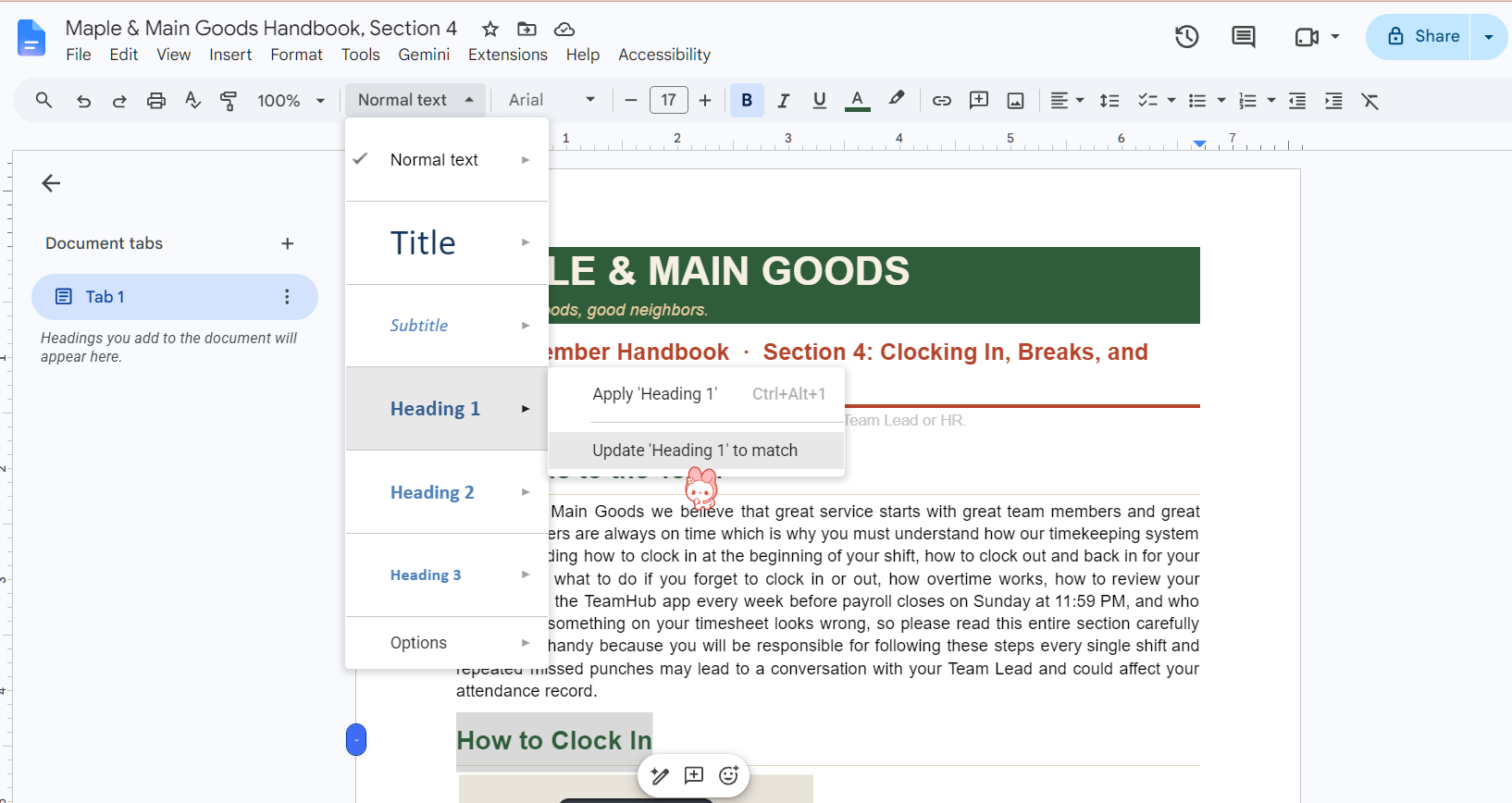
Real headings can still match your brand. Style one heading the way you want, then open the style menu, point to Heading 1, and choose Update ‘Heading 1’ to match. Every Heading 1 will match it.
Quick check: Which of these is a real heading?
Choose an answer. Each option is a button.